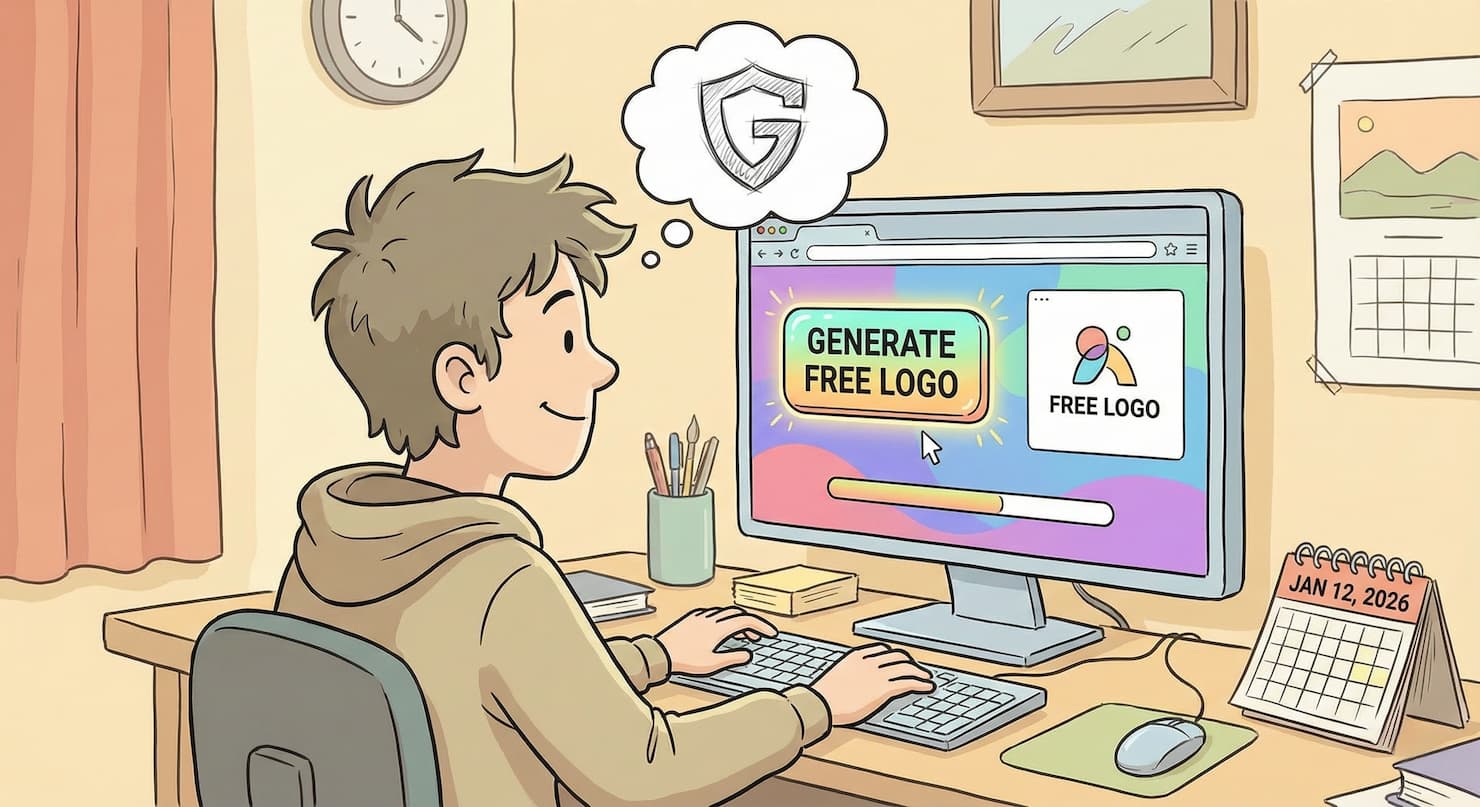
Learning how to make a logo for free is one of the smartest moves you can make when starting your online store on a tight budget. You don’t need to hire a designer. You don’t need expensive software. And you definitely don’t need to settle for a logo that looks amateur.
After 14 years of building over 800 online stores, I’ve seen countless entrepreneurs waste hundreds of dollars on logo designers before they’ve made their first sale. I’ve also watched smart business owners create a logo for free using simple tools—and those logos looked just as professional.
The truth? Modern free logo maker tools have gotten so good that, unless you’re launching a Fortune 500 company, you can absolutely start with a free option. I’m going to show you exactly how to make a logo for free using the best tools available in 2025, with a complete Canva logo tutorial that anyone can follow.
Let’s create your logo.
Why You Don’t Need to Pay for a Logo (Yet)
Before we dive into how to make a logo for free, let’s address the question I hear constantly: “Shouldn’t I invest in a professional logo from the start?”
Here’s my honest take after building hundreds of stores.
A professional logo matters—but timing matters more. When you’re testing products, validating your business idea, and figuring out if customers even want what you’re selling, spending $300-$1,000 on a logo is premature.
Start with a free logo when:
- You’re launching your first store and haven’t made sales yet
- You’re testing a product or niche before fully committing
- Your budget is tight, and every dollar counts
- You want to get to market quickly
Invest in a custom logo when:
- You’ve validated your business and are making consistent sales
- Your brand identity has evolved, and you know exactly what you want
- You’re ready to scale and need a truly distinctive brand mark
- You have revenue to reinvest in professional branding
The best approach? Create a logo for free now, launch your store, start making sales, and upgrade to a professional designer once you understand your brand better. Many six-figure businesses started with logos created using a free logo maker.
The Best Free Logo Maker Tools in 2025
When learning how to make a logo for free, your tool choice matters. I’ve tested dozens of platforms, and these three stand out.
Canva (My top recommendation)
Canva is the free logo maker I recommend most often. It’s intuitive, packed with templates, and completely free for basic use. The drag-and-drop interface makes it easy to design a logo online for free, even if you have zero design experience.
Canva offers thousands of free templates, millions of free icons and images, and flexible editing tools. You can create a logo for free and download it as a high-resolution PNG without paying anything.
Adobe Express
If you’re already using Adobe products or prefer their design aesthetic, Adobe Express is an excellent free logo maker. The AI-powered features help generate logo options quickly.
Looka (AI-powered option)
Looka uses AI to generate custom logos based on your preferences. You answer questions about your style, and it creates options automatically. Great for how to make a logo for free if you want less hands-on design work.
For this tutorial, I’ll focus on Canva because it’s the most versatile and beginner-friendly option for those learning how to make a logo for free.
Step-by-Step: How to Make a Logo for Free With Canva
This Canva logo tutorial will walk you through creating a professional logo in under 20 minutes. Let’s get started on how to make a logo for free.
Step 1: Create Your Free Canva Account
Go to canva.com and click “Sign up.” You can create a logo for free using just an email address, or sign up with Google or Facebook.
You don’t need Canva Pro to make a logo for free. The free version includes everything you need for a basic logo.
Once you’re logged in, you’re ready to start using this free logo maker.
Step 2: Search for Logo Templates
In the Canva homepage search bar, type “logo” and hit enter. You’ll see thousands of logo templates you can use to create a logo for free.
How to filter templates in this free logo maker:
Click “Style” to browse minimalist, modern, vintage, or playful aesthetics. Choose what matches your brand personality.
Use the color filter if you already know your brand colors. This helps you design a logo online free that fits your vision.
Browse industry-specific templates by searching “bakery logo,” “fitness logo,” “boutique logo,” etc. This makes it easier to create a logo for free that suits your niche.
Step 3: Choose Your Starting Template
Don’t overthink this step in learning how to make a logo for free. Pick a template that’s close to what you envision. You’ll customize everything, so it doesn’t need to be perfect.
What to look for when using a free logo maker:
- Clean, simple layouts work better than complex designs
- Templates with elements you like (icons, text layouts, shapes)
- A professional feel that matches your brand
Click on your chosen template to open the editor. Now you’re ready to customize and create a logo for free.
Step 4: Customize Your Logo Text
This is where you make the template your own in this Canva logo tutorial.
Click on the text in the template. Delete the placeholder text and type your business name. This is the core of learning how to make a logo for free—making it yours.
Choose your font carefully. Fonts communicate personality. Clean, modern fonts work for most online stores. Script fonts feel elegant but can be hard to read at small sizes. Bold fonts feel strong and confident.
Canva’s free logo maker includes hundreds of free fonts. Browse by clicking “Font” in the top toolbar.
Adjust the text size so your business name is the dominant element. Your logo should be readable when shrunk down to favicon size.
Add a tagline if you want. This is optional when you create a logo for free, but can help communicate what you do. Keep it short—3-5 words maximum.
Step 5: Customize or Replace the Icon
Most logo templates in this free logo maker include an icon or graphic element. You can customize it or swap it completely.
To change the icon when learning how to make a logo for free:
Click on the icon in your template. In the left sidebar, click “Elements.” Search for keywords related to your business (e.g., “coffee,” “flower,” “mountain,” “camera”).
Browse the results and click any icon to replace your current one. Canva marks free elements with a “Free” label. These work perfectly to design a logo online for free.
To customize the icon colors:
Select the icon. At the top of the editor, you’ll see a color tile. Click it to change the icon color. This helps you create a logo for free that matches your brand palette.
Step 6: Choose Your Color Palette
Your colors should be intentional when you design a logo online for free. Colors communicate emotion and affect how customers perceive your brand.
Color psychology basics for your free logo maker project:
- Blue: Trust, reliability (tech, finance, healthcare)
- Green: Growth, natural, eco-friendly (wellness, organic products)
- Red: Energy, passion, urgency (food, sports, sales)
- Purple: Luxury, creativity (beauty, premium products)
- Black: Sophistication, timeless (fashion, luxury)
How to apply colors in this Canva logo tutorial:
Select any element in your logo. Click the color tile at the top. Choose from preset palettes or create a custom color using the color picker.
For a professional look when you create a logo for free, stick to 2-3 colors maximum. Too many colors make logos look cluttered and unprofessional.
Step 7: Adjust Layout and Spacing
Good spacing makes the difference between amateur and professional when you make a logo for free.
How to adjust spacing in this free logo maker:
Click and drag elements to reposition them. Make sure your business name has breathing room around it.
Use Canva’s alignment guides (the purple lines that appear when you move elements). These help you design a logo online free with perfect alignment.
Adjust the size of elements by dragging corner handles. Keep proportions balanced—your icon shouldn’t overwhelm your text or vice versa.
Step 8: Preview at Different Sizes
Before you finalize your logo in this Canva logo tutorial, preview how it looks at various sizes. This is crucial when learning how to make a logo for free.
Zoom out in the editor to see how your logo looks small. Click the minus button in the bottom right corner.
Does your text remain readable? Are details still visible? If not, simplify.
A great test: If you can’t read your business name when the logo is thumbnail-sized, it needs adjusting. This matters when you create a logo for free for actual use.
Step 9: Download Your Free Logo
Once you’re happy with your design, it’s time to download. This is the final step in how to make a logo for free.
Click the “Share” button in the top right corner. Select “Download.”
Download settings for your free logo maker file:
File type: Choose PNG for the best quality when you design a logo online for free. PNG supports transparent backgrounds, which you’ll need.
Transparent background: Toggle this ON. This option is available in the free version of Canva. A transparent background lets you place your logo on any color background.
Quality: Set to “Recommended” for high resolution.
Click “Download” and save your file. Congratulations—you’ve successfully learned how to make a logo for free!
What File Formats Do You Need?
When you create a logo for free, understanding file formats helps you use your logo correctly.
PNG (what you downloaded): Perfect for websites, social media, and most digital uses. The transparent background makes PNG files versatile when you make a logo for free.
JPG: Good for photos and complex images, but not ideal for logos because it doesn’t support transparency. Stick with PNG when you design a logo online for free.
SVG (vector format): Scalable without quality loss. Canva Pro offers SVG downloads, but for starting out with a free logo maker, PNG is sufficient.
PDF: Useful for printing and sending to designers. Canva’s free version lets you download as a PDF if needed.
For most beginners learning how to make a logo for free, a high-resolution PNG with a transparent background covers 90% of use cases.
How to Use Your New Logo
Now that you’ve learned how to make a logo for free, let’s talk about using it effectively.
Add it to your Shopify store: Upload your logo in Shopify under “Online Store > Themes > Customize.” Look for the header section where you can upload your logo file.
Use it on social media: Create profile pictures, cover images, and post graphics featuring your new logo. Consistent branding across platforms builds recognition.
Add it to packaging: If you ship physical products, include your logo on shipping labels, thank you cards, or product packaging.
Create marketing materials: Use your logo on email signatures, business cards (you can design these online for free in Canva too), and promotional graphics.
Maintain consistency: Use your logo the same way everywhere. Same colors, same orientation, same spacing. This reinforces your brand when you create marketing materials for free.
Common Logo Design Mistakes to Avoid
After watching hundreds of people create a logo for free, I’ve seen these mistakes repeatedly.
Using too many fonts. Stick to one or two fonts maximum when you make a logo for free. Three or more fonts look messy and unprofessional.
Choosing trendy over timeless. That cool effect might look dated in a year. Simple, clean designs age better when you design a logo online for free.
Making it too complex. If your logo has tiny details that disappear when shrunk down, simplify it. This is crucial when using a free logo maker.
Ignoring mobile display. Most people will see your logo on phones. Test how it looks on a small screen when you create a logo for free.
Skipping the transparent background. Always download with transparency. This gives you flexibility in how you use your logo.
Copying competitors exactly. Use competitor logos for inspiration, but make yours unique. Part of learning how to make a logo for free is creating something distinctly yours.
Tips for a More Professional Free Logo
Want your free logo maker creation to look even more polished? Try these techniques.
Keep it simple. The best logos are often the simplest. Think Apple, Nike, or Target. When you design a logo online for free, less is usually more.
Use negative space creatively. The space around and between elements can create interesting effects. Look at how FedEx uses the space between E and X to create an arrow.
Choose one standout element. Make either your icon OR your typography the star, not both competing for attention. This creates focus when you create a logo for free.
Test in black and white. A great logo works even without color. Convert your logo to grayscale in Canva to test this.
Get feedback. Show your logo to friends or potential customers. Ask specific questions: Is it readable? What feeling does it give you? Does it look professional?
When to Upgrade From Your Free Logo
You’ve successfully learned how to make a logo for free, but at some point, you might want to upgrade. Here’s when it makes sense.
You’re making consistent sales. Once you have revenue, reinvesting in professional branding shows customers you’re serious.
Your brand has evolved. What felt right when you started might not match where your business is headed. A designer can capture your refined brand identity.
You need specific technical files. If you’re doing large-format printing, merchandise, or other specialized applications, professional vector files help.
You want something truly unique. While free logo maker tools are excellent, a custom design ensures nobody else has a similar logo.
Your budget allows it. When logo design won’t strain your budget, professional design can elevate your brand.
That said, there’s no shame in continuing to use a logo you created for free. Many successful businesses stick with their DIY logos for years.
Your Next Steps
You now know exactly how to make a logo for free using Canva and other tools. This Canva logo tutorial has walked you through every step.
Here’s what to do next:
- Block out 30 minutes this week to create a logo for free
- Follow this Canva logo tutorial step by step
- Download your logo with a transparent background
- Upload it to your Shopify store immediately
- Use it across all platforms consistently
Don’t spend weeks perfecting your logo. Create a logo for free that’s good enough to launch with, then refine it based on customer feedback and your evolving brand.
The most important thing isn’t having the perfect logo from day one. It’s having a professional-looking logo that lets you launch your business and start connecting with customers.
You can always design a logo online for free again later if you want to refresh your brand. But for now, use this free logo maker guide to create something you’re proud of—and get back to building your business.
Related Articles:
- How to Name an Online Store: 10 Tips for Choosing a Name You Won’t Regret — Get your store name right first
- How to Start a Shopify Store: A Complete 10-Step Guide for Beginners — Your full setup walkthrough
- The 7 Best Free Shopify Themes for Beginners in 2025 — Pair your new logo with the perfect theme
- [The Ultimate Shopify Pre-Launch Checklist: 15 Things to Do Before You Go Live] — Make sure you’re ready to launch
With 14+ years in ecommerce and over 800 stores built, I’ve helped countless entrepreneurs create professional branding on a budget. Have questions about creating your logo? Drop a comment below.